Every capture tool. One menu bar icon.
SnapDog is a native SwiftUI screen-capture app for macOS 14 (Sonoma) and later — capture, record, annotate, and ship to 19 destinations without leaving your menu bar. Available now on the Mac App Store.
Capture
Fullscreen, window, region — plus the modes Screenshot.app never learned.
Fullscreen, window & region
ScreenCaptureKit-powered captures bound to ⌃⇧1 / ⌃⇧2 / ⌃⇧3 out of the box — every shortcut is rebindable in Settings → Hotkeys.
Region loupe & size badge
Drag with a 4× magnifier loupe, a live pixel-coordinate readout, and a w × h size badge as you go. Space toggles the loupe; Esc cancels.
A window picker that respects z-order
Click-to-pick overlay with hover highlight and an app + title badge under the cursor. The top window wins even when frames overlap — and modal dialogs and floating panels are pickable, not just normal windows.
Take over ⇧⌘3 / ⇧⌘4 / ⇧⌘5
Optionally bind SnapDog's Fullscreen, Region, and Window captures to the system screenshot shortcuts — offered during onboarding, with a warning when a combo clashes with a reserved macOS shortcut.
Delayed capture
Capture menu → Delay 3s / 5s / 10s with a floating countdown HUD. Esc cancels the countdown.
Display under your cursor
Capture whichever display the cursor is on instead of always grabbing the primary — and the region picker overlays every connected display, so multi-monitor setups just work.
Stitch capture
Pick a region once, scroll at your own pace, click Add Frame — SnapDog aligns each new frame against the last and appends only the non-overlapping content into one tall image.
Recapture Last
One optional global hotkey re-runs whichever capture kind you used most recently — no picker UI, no menu trip.
Native shutter sound
The genuine macOS screen-capture shutter plays the moment a capture lands, just like Screenshot.app. On by default; toggle it in Settings → General.
Record
Screen recording built on ScreenCaptureKit — straight to MP4, MOV, or GIF.
Recording mode: 4K-safe to ProRes
Pick Automatic, Compatible 4K, Native HEVC, or Professional ProRes. Each mode couples resolution, codec, and container, so a high-resolution display never lands on an encoder configuration your Mac can’t prepare. Above 4K the canvas scales to an encoder-safe size instead of failing.
MP4 / MOV / GIF
Pick GIF as a first-class recording format — SnapDog records to a temp MP4 and finalizes the GIF on stop. Any saved recording can also be exported to GIF later from History.
System audio + microphone
System audio is covered by the Screen Recording permission; the mic records as its own AAC track with a separate toggle and permission flow.
Webcam PiP — even on region recordings
Picture-in-picture on fullscreen, window, and region recordings. The floating preview panel is draggable and resizable, and the saved file composites your camera exactly where the panel sat. FaceTime-style mirror toggle included.
Webcam-only & one-shot overrides
Record just the camera with Webcam Only, or use the Screen + Camera submenu to override the webcam setting for a single recording without flipping the global toggle.
Pause & resume
⌘⇧P pauses mid-recording; presentation timestamps are adjusted on resume so the saved file plays back with no gap.
Click ripples
Yellow ripples expand at every left and right click while recording — baked into the saved file, perfect for tutorials. Toggle in Settings.
Quality presets & countdown
High / Balanced / Small presets or a custom-bitrate stepper for both screen and webcam tracks, plus a cancellable 3-2-1 countdown HUD before recording starts.
Multi-monitor aware
A display picker appears before each recording on multi-monitor Macs (auto-skipped with one display), and the floating recording HUD excludes itself from the captured stream.
Edit
A full annotation editor, one keystroke away — no round-trip to Preview.
Every annotation tool
Rectangle, rounded rectangle, ellipse, triangle, diamond, pentagon, hexagon, and star in a shapes gallery — plus reversible arrows, lines, freehand, click-to-add-vertex polygons, text, and fillable speech balloons.
Redact & emphasize
Blur and pixelate for secrets, a highlighter for the important bits, auto-incrementing numbered step badges, and a spotlight that dims everything except the region you choose.
Objects panel
A layers-style list of every annotation on the canvas — select, reorder, and delete without hunting for tiny handles.
Edit anything, after the fact
Select any existing annotation and change its color, size, fill, and opacity. Fills come in Outline, Solid, or Translucent; Shift constrains lines to straight angles.
Undo, zoom, duplicate
Snapshot-based Undo (⌘Z) and Redo (⌘⇧Z), Duplicate (⌘D), pinch to zoom, Option-drag to pan, ⌘0 to reset, ⌘= / ⌘− to step.
Crop, straighten, resize
Crop keeps surviving annotations in place by translating them into the new coordinate space; a fine-angle straighten slider auto-crops the result; resize to exact pixel dimensions.
Watermark on the canvas
Move and resize your watermark directly on the image — changes flow back into the global Effects settings. Any system font, custom color, size, opacity, and free X/Y placement.
Export your way
Save as PNG, JPEG, TIFF, or HEIC with a quality control. Open Image and Save panels default to your capture folder, and an eyedropper picks colors straight off the image.
Text & Tools
Vision-powered utilities, each one a menu item away.
Recognize Text (OCR)
Draw a region and Apple's Vision framework reads it on-device, landing the text on your clipboard. Optionally route OCR through your configured AI provider for stylized fonts and mixed-language content.
QR — decode & generate
Decode QR, Aztec, DataMatrix, and PDF417 codes from the screen, the editor, or any History row. Generate a 512×512 QR PNG from any text, straight to the clipboard.
Pick Color
Single-pixel screen sampler with a magnifier loupe and live hex / RGB readout. Click to copy the hex.
Measure with Ruler
Drag a measurement line over a frozen screen with live length, Δx, Δy, and angle. Shift snaps to horizontal or vertical.
On-device transcription
Recordings transcribe locally — Apple SpeechAnalyzer on macOS 26+, SFSpeechRecognizer before that — so audio never leaves your Mac. Auto-transcribe after each recording if you like; transcribed rows get a badge, and transcripts can be summarized via your AI provider.
AI Analyze — ready on first launch
Describe a capture, extract text, or suggest a filename with the Built-In Demo (On-Device), which requires no account, key, model download, or network. Optional cloud and locally hosted providers remain available in Settings.
Automate & Share
The ShareX pipeline, rebuilt native for the Mac.
Visual workflow builder
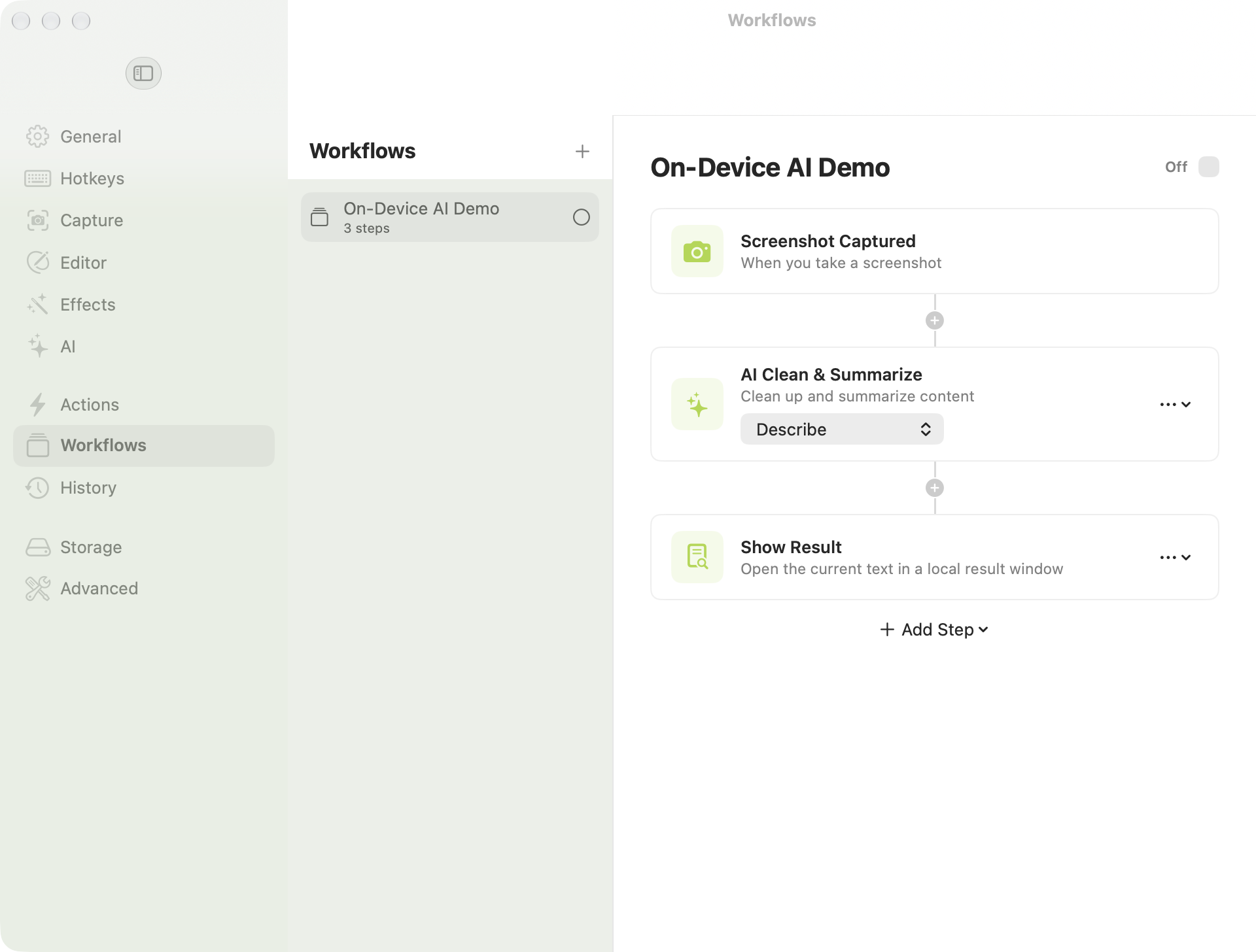
Chain Screenshot → OCR → AI Summarize → Action as cards in Settings → Workflows. Data flows between steps: OCR text becomes the Slack note, and an upload step's URL threads into the downstream webhook.
Actions after every capture
A reorderable list of post-capture automations — upload, webhook, Slack, AI — governed by one master mode: Save Locally, Run Actions, or Ask Every Time with a floating per-capture chooser.
19 upload destinations
Imgur, Dropbox, Google Drive, OneDrive, Amazon S3 and S3-compatibles (R2, B2, MinIO, Spaces), SFTP, Slack, Discord, Telegram, Notion, Mastodon, Bluesky, Cloudinary, GitHub, iCloud Drive, AirDrop, Catbox.moe, 0x0.st — each with a per-destination Test button.
ShareX .sxcu import
Drag in any existing ShareX custom-uploader config — multipart, form-urlencoded, JSON, or binary, with {response} and {json:dot.path} URL templates. URL shorteners import the same way and auto-chain after upload.
Signed webhooks
POST a JSON payload on Capture Saved or Capture Uploaded with HMAC-SHA256 signing (the same header scheme as Slack, GitHub, and Stripe) and exponential-backoff retry. Works with Zapier, n8n, and Make.com.
Capture-preset hotkeys
Bind whole capture chains to global hotkeys — each with its own capture kind and per-workflow clipboard / save / editor / pin / beautify / upload flags that bypass the global settings.
History that pulls its weight
Search filenames and tags, filter by source, mark favorites, Quick Look with Space, open any capture straight into the editor, copy as Markdown / HTML / BBCode, and export a self-contained HTML gallery.
Watch folders & Pin to Screen
Auto-import new images and videos from any folder into History, keep the last five captures in a Recent menu, and pin any capture as a floating thumbnail you can drag straight into Slack, Mail, or Finder.
Private by design
Screenshots are sensitive. SnapDog treats them that way.
On-device by default
OCR runs on Apple's Vision framework and transcription runs on Apple's speech frameworks — locally. Nothing leaves your Mac unless you configure a destination or an AI provider yourself.
Optional providers, direct traffic
The Built-In Demo stays on your Mac. If you select another provider, requests go directly from SnapDog to that provider; SnapDog operates no intermediary AI service.
Secrets live in the Keychain
API keys, OAuth tokens, SFTP passwords and private keys, and webhook signing secrets are all stored in the macOS Keychain — never in plain-text preferences.
Sandboxed, modern auth
App Sandbox stays on in release builds. OAuth runs through ASWebAuthenticationSession with PKCE — no bundled client secrets — and SFTP pins host keys on first use.
Native & localized
A SwiftUI menu-bar app for macOS 14 (Sonoma) and later — no Dock icon, no Electron — localized into 13 languages, from Arabic to Traditional Chinese.
Available now on the Mac App Store
$14.99 one-time, with a $9.99 intro price for the first 7 days from launch. Family Sharing on. No subscriptions, no in-app purchases.
One price. Every feature above.
$14.99 one-time on the Mac App Store — no subscriptions, no in-app purchases, Family Sharing included.
See pricing